What is a transaction, and why does it matter for your budget?
Learn what a transaction is, the three kinds you will actually log (expense, income, transfer), and how Nice Budget keeps logging quick enough to stick with.
Open any budgeting app and the word "transaction" is everywhere. Add a transaction. View transactions. Edit a transaction. It sounds technical, but the idea is small: a transaction is a record of money moving.
That is the whole concept:
- A coffee bought with your debit card is a transaction.
- A paycheck landing in your bank account is a transaction.
- Moving cash from checking to savings is a transaction.
A budget is built out of transactions, the same way a sentence is built out of words. If you do not log them, you do not really have a budget. You have a wish.
This article walks through what a transaction actually is, the three kinds you will log in real life, and how Nice Budget keeps logging quick enough to stick with.
The plain definition
A financial transaction is an exchange of money between two parties. Wikipedia defines it as "an agreement, or communication, between a buyer and seller to exchange goods, services, or assets for payment." Every transaction changes the financial status of at least two parties.
In personal finance, those two parties are usually:
- You and a store, when you buy something.
- You and your employer, when you get paid.
- You and yourself, when you move money between your own accounts.
A transaction can settle instantly with cash or a debit card, or it can be deferred with credit. The timing changes, but the core idea is the same. Money moved. Something needs to be recorded.
The three kinds of transactions you will actually log
You do not need accounting terms to budget well. Most personal finance comes down to three movements:
- Expense. Money leaving your account. Groceries, rent, gas, your subscription to that one app you forgot about. Anything you spend.
- Income. Money arriving in your account. Paychecks, side hustle payments, refunds, gifts, interest.
- Transfer. Money moving from one of your accounts to another. Checking to savings. Cash deposit. Paying down a credit card from your bank account.
That is it. If you can sort each financial event into one of those three buckets, you can budget. Everything else is detail.
A quick note on transfers, because they trip people up:
- A transfer is not spending and it is not earning.
- The total money you have stays the same.
- You are just moving it from one of your accounts to another.
This matters because if you accidentally log a transfer as an expense, your budget will think you spent twice as much as you really did.
Logging a transaction in Nice Budget
Nice Budget mirrors those same three movements. From your wallet home, the Add transaction button at the top opens a single form that handles all three.
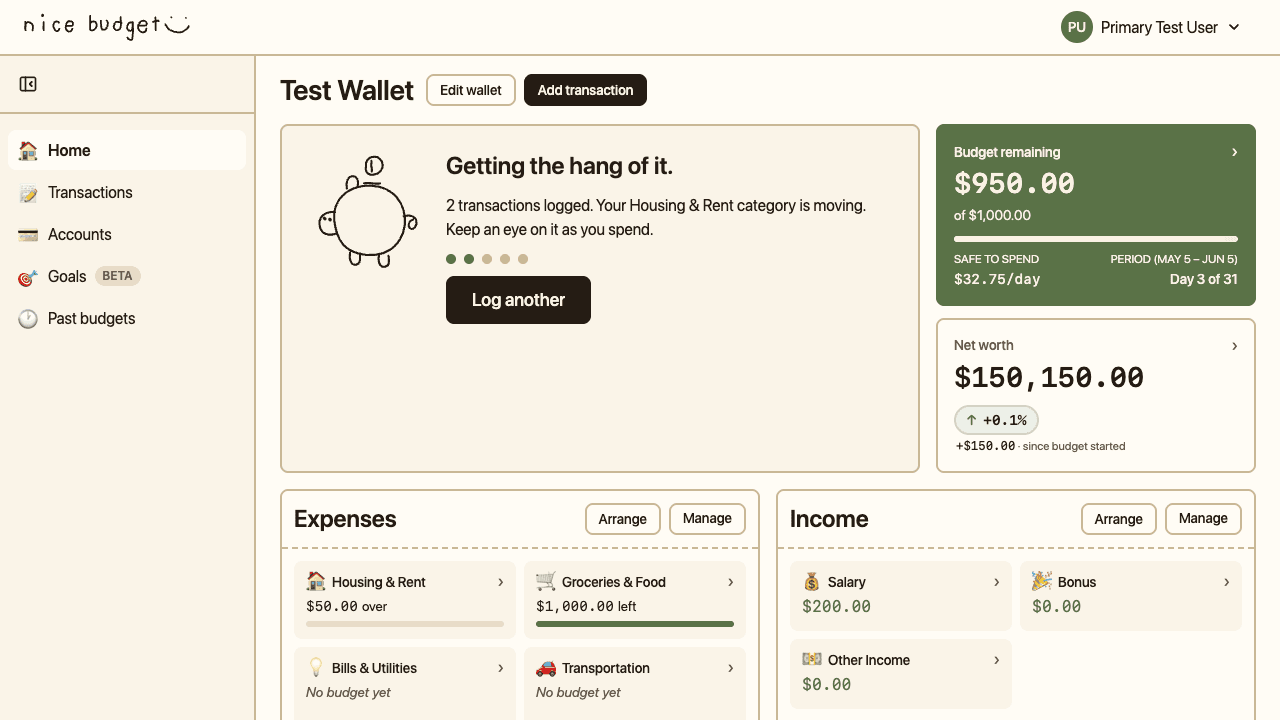
The Add transaction button sits at the top of the wallet home, so logging is one tap away from anywhere in the app.
Tap Add transaction and Nice Budget drops you into a form with three tabs at the top:
- Expense for money leaving.
- Income for money arriving.
- Transfer for money moving between your own accounts.
Each tab changes the form to ask for only the fields that movement actually needs. You do not have to learn three separate flows. You pick the tab that matches what happened.

The form opens on Expense by default, with the Category and Account fields pre-selected so you can save without making three extra decisions.
What a transaction needs in order to be useful
A list of dollar amounts is not a budget. To be useful, each expense or income transaction needs three pieces:
- Amount. How much moved.
- Account. Where the money came from or went to. Your checking account, your credit card, your cash wallet.
- Category. What kind of spending or income it was. Groceries, rent, salary, gift.
If you want a deeper tour of how those last two pieces fit into Nice Budget, the guide to wallets, accounts, and categories walks through how each one is responsible for a different part of your budget.
The category is what does the heavy lifting:
- A line that says "$48.20 on Tuesday" tells you nothing.
- A line that says "$48.20 on Groceries & Food from your debit card" tells you whether you are on track for the week.
As Chase notes in its expense tracking guide, organizing expenses by category shows you how much goes to each area, which is the foundation of any plan.
The account matters too. If you do not record which account the money came from, your account balances drift away from reality, and the numbers stop feeling trustworthy.
In Nice Budget, the form gives you live feedback as you type. Fill in an amount and the right side of the screen shows the Account Balance Impact: what the account balance was before, what it will be after, and the size of the change. You see the result of the transaction before you save it.
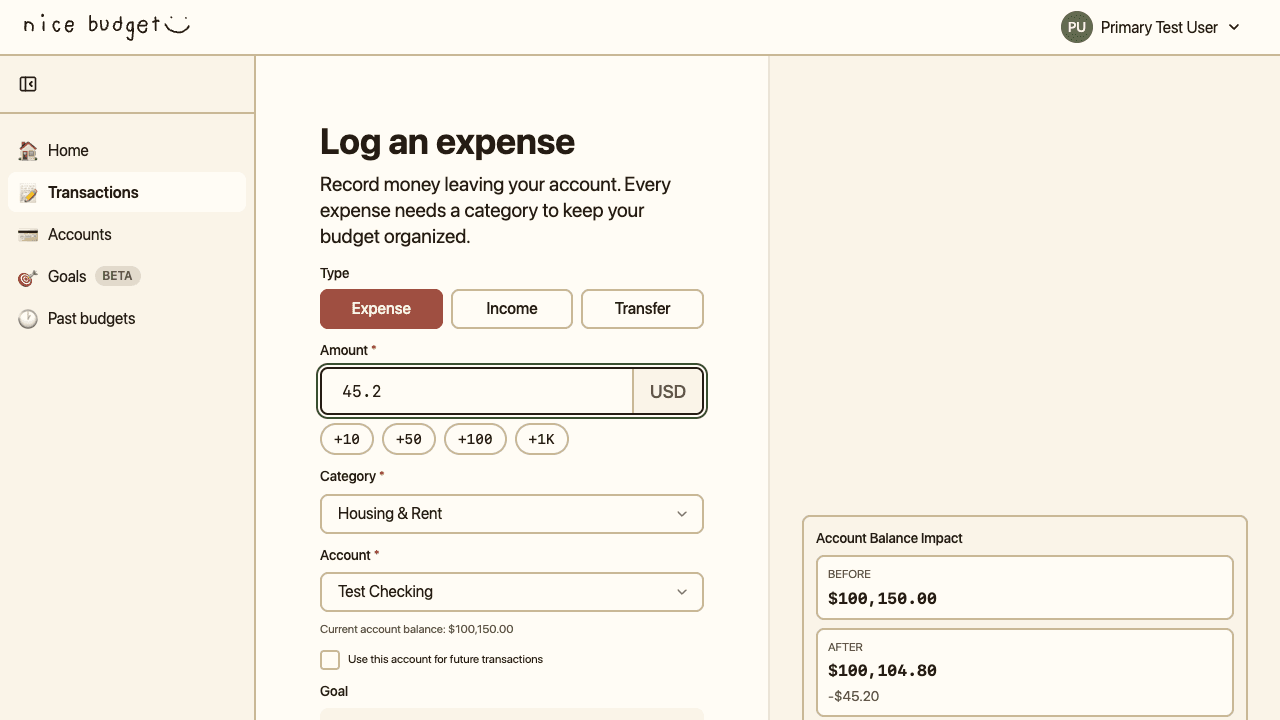
Typing an amount updates the Account Balance Impact panel live: BEFORE $100,150.00, AFTER $100,104.80, change -$45.20. You see the result before you save.
Income works the same way
Switching to the Income tab keeps the same shape. The form still asks for Amount, Category, and Account. The difference is direction:
- The category list switches to income categories like Salary, Bonus, and Other Income.
- The Account Balance Impact preview goes up instead of down.
- The header changes to "Record income," so you know which way the money is moving.
You can flip between Expense and Income with one click. Same form, same fields, opposite direction.
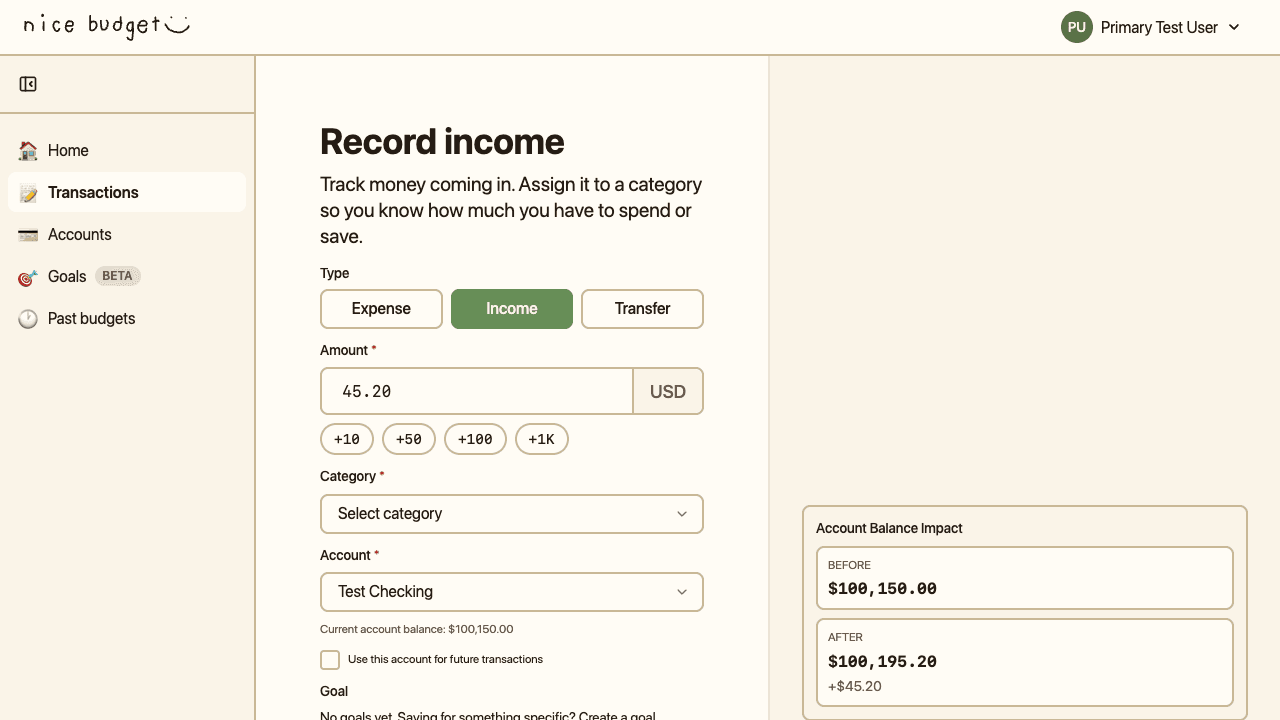
On the Income tab, the heading switches to Record income, the category list shows income options like Salary and Bonus, and the Account Balance Impact moves up instead of down.
Transfers move money without spending it
Switching to the Transfer tab changes the form again, but in a more meaningful way:
- Instead of one Account field, you get From Account and To Account.
- The Category field becomes optional.
- The header changes to "Move some money."
Because a transfer does not spend or earn anything, Nice Budget does not force you to attach a category. You can pick one if you want the move to count toward a savings goal or a specific budget line, but you can skip it and the transfer just shifts your balances.
This is the part of transaction tracking that quietly keeps your numbers honest. Without a transfer type, every move from checking to savings would look like an expense, and your budget would tell you you spent money you actually saved.
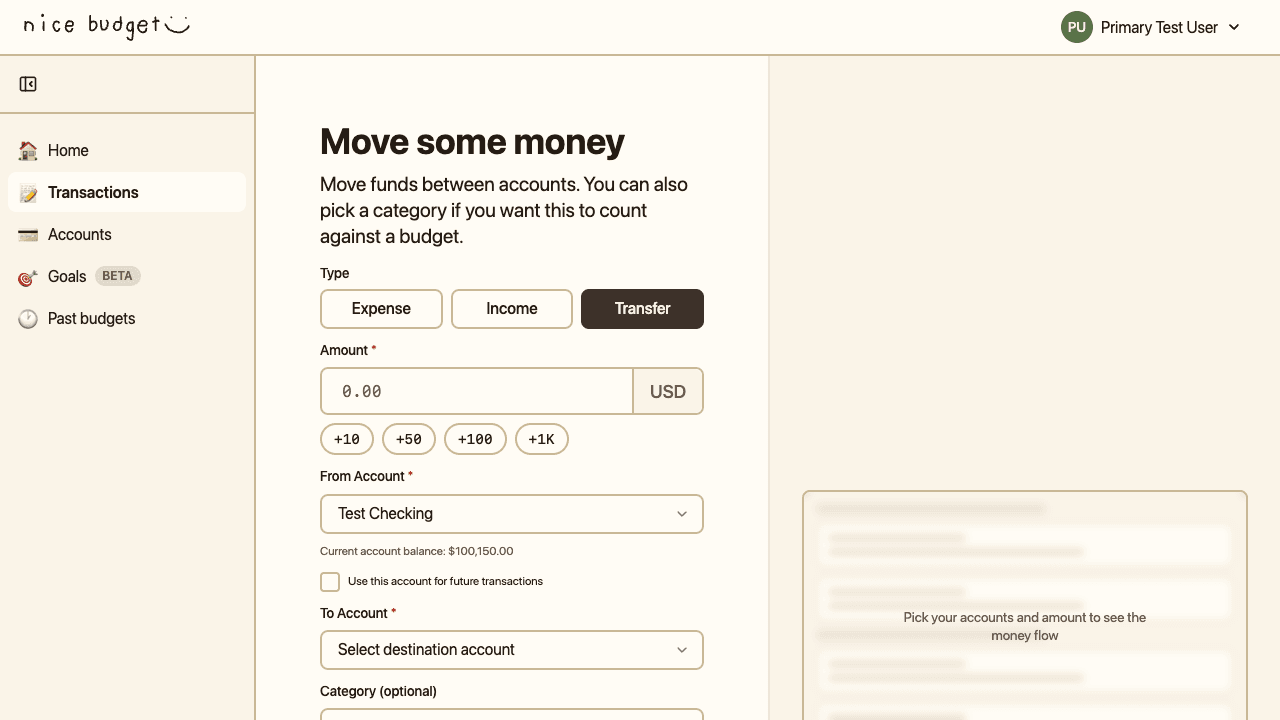
The Transfer tab swaps the single Account field for From Account and To Account, and marks Category as optional, since moving money between your own accounts is not spending.
Why logging every transaction matters
It is tempting to log only the big stuff. The rent, the car payment, the trip. But the small stuff is usually where budgets quietly break. Chase's budgeting guidance puts it plainly: tracking has to cover variable spending across all of your accounts, because that is where most people lose visibility. Coffees, lunches, app store purchases, one-off hardware store runs. They do not feel meaningful in the moment. Added up over a month, they often beat your grocery bill.
Experian gives the short list of why tracking helps:
- It keeps you on budget by letting you make real-time decisions.
- It surfaces overspending in specific categories.
- It makes savings goals realistic, because you can see what is actually left over.
The data backs this up. WalletHub's 2025 Budgeting Survey found that more than 86% of people who budget say they do it regularly, but the National Foundation for Credit Counseling reports that only about 42% of Americans actually track their income and expenses. There is a gap between having a budget and keeping it honest. And life keeps getting more expensive: average household expenditures rose 44% between 2014 and 2024 (U.S. Bureau of Labor Statistics, via WalletHub's 2026 statistics roundup). If your spending is climbing and you cannot see where, it is hard to push back.
If you have not picked a budgeting style yet, our overview of personal budgeting methods compares five common ones and helps you find one that fits how you actually live.
Friction is the real enemy
Here is the honest truth about budgeting apps, including the good ones: people quit them because logging transactions feels like homework. Too many categories. Too many fields. Cash purchases that get forgotten. Once logging feels like a daily audit, it gets skipped. Once it gets skipped, it gets abandoned. The fewer decisions you make at the moment of logging, the more likely you are to actually log.
Nice Budget reduces that decision count in a few small ways:
- The category defaults to the last expense category you used. If you bought groceries yesterday, the category for today's transaction starts on Groceries & Food. Most people repeat purchases, so the default is right more often than it is wrong.
- The account defaults to the one you marked as your default spending account. The form opens with it already selected.
- Quick-add chips next to the Amount field let you add +10, +50, +100, or +1K with a tap, instead of typing.
- The form remembers the date as today, so you do not have to set it for the common case.
Logging a transaction should take a few seconds, not a few minutes. If it costs you more than that, the habit will not survive a busy week.
How transactions show up later
Once a transaction is saved, it stops being a form and becomes part of your wallet's story. Open the Transactions tab in the side menu and you will see the full list, with tabs across the top that count and filter by type:
- All shows everything in one feed.
- Expenses shows only money going out.
- Income shows only money coming in.
- Transfers shows only money moving between your accounts.
Above the list, a summary bar shows your totals for the period: how many entries, how much you spent, how much you earned, and your net.
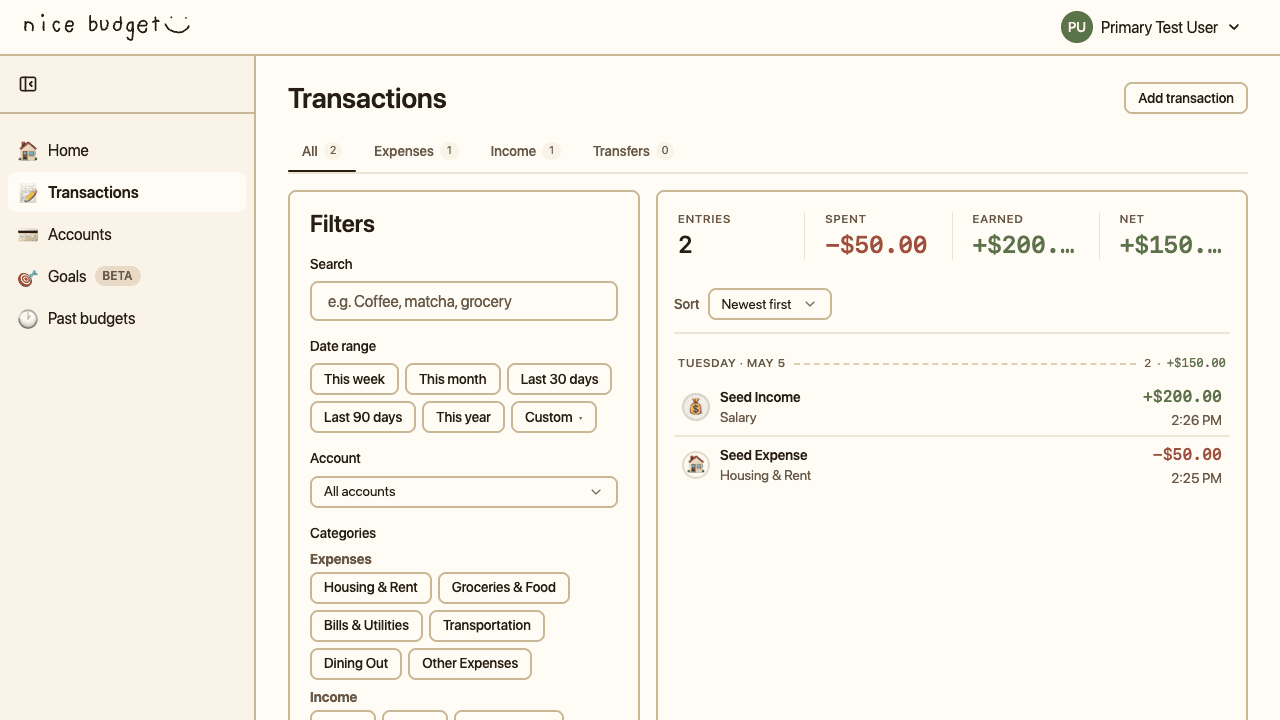
The Transactions page groups every entry by date and lets you filter by type, search, date range, account, or category to find anything in your history.
Each transaction also does several quiet things in the background:
- It updates the balance on the account it touched.
- It adds to the running total for its category, so you can see how close you are to your budget for that line.
- It contributes to your overall spending for the month.
- It becomes part of your history, which makes next month's plan more realistic.
The takeaway
A transaction is not a technical term to memorize. It is the smallest unit of self-knowledge about your money. Each one takes a few seconds to log. Each one nudges your account balances, your categories, and your monthly totals a step closer to reality.
The whole loop is simple:
- Money moves.
- You pick Expense, Income, or Transfer.
- The form fills in most of the answer.
- You save, and your budget reflects what actually happened.
Do that for a few weeks and you stop guessing where your money goes. You start reading the receipt instead.
Ready to log your first one? Start budgeting with Nice Budget.